2D Grid Editor
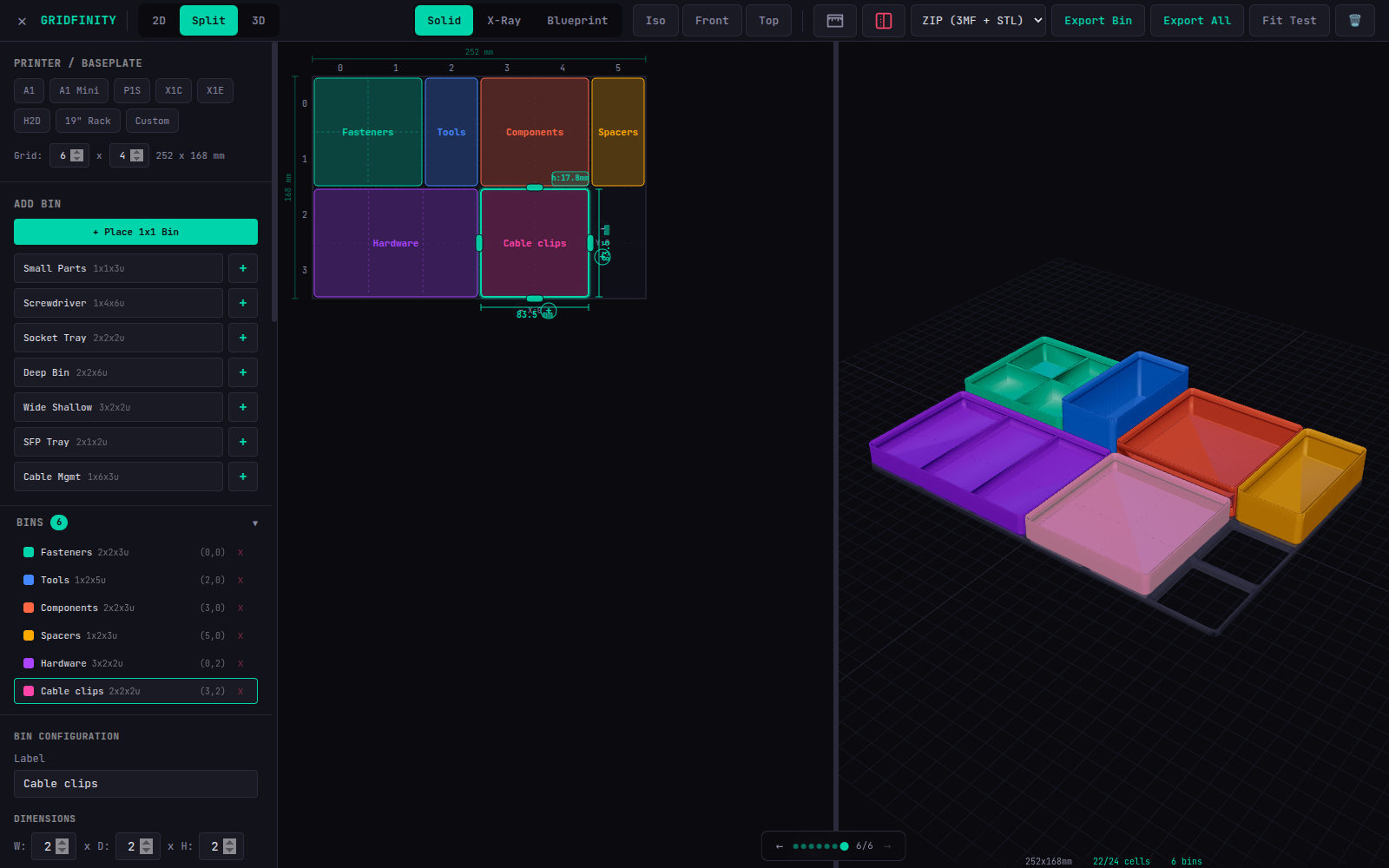
The 2D grid is the primary workspace for designing your Gridfinity layout. It's a pannable, zoomable SVG canvas with real-time visual feedback.
Interactions
Placing Bins
- Click a bin preset in the sidebar (or "+ Place 1x1 Bin")
- A ghost preview follows your cursor on the grid
- Green ghost = valid placement, red ghost = collision
- Click to place the bin
- Press
Rto rotate the ghost before placing - Press
Escto cancel
Drag & Drop
- Click and drag a placed bin to move it
- The bin snaps to grid cells during the drag
- If the drop position collides with another bin, the bin snaps back to its original position with a smooth animation
Drag from Sidebar
Bin presets in the sidebar are draggable — drag them directly onto the grid to place them without entering placement mode.
Resize Handles
When a bin is selected, 4 edge handles appear (North, South, East, West):
- Drag any handle to grow or shrink the bin in that direction
- A ghost preview shows the new size with validity feedback
- Release to commit the resize
Rotate
- Click the rotate handle (circular icon at top-right) to swap width and depth
- Or press
Rwith a bin selected - Rotation is only available for non-square bins
Interior Dividers
When a bin is selected, +/- controls appear:
- Below the bin — X dividers (vertical lines)
- Right of the bin — Y dividers (horizontal lines)
- Up to 9 dividers per axis, always equispaced and wall-to-wall
Navigation
| Input | Action |
|---|---|
| Middle mouse button | Pan the grid |
| Scroll wheel | Zoom (0.2x to 5x) |
Visual Feedback
- Grid lines — dashed lines showing cell boundaries
- Column/row labels — numbered along the edges
- Measurement overlay — real-world mm dimensions (CAD-style cotas) for the full grid
- Bin dimensions on hover — width, depth, and height in mm
- Group color dots — small colored circle at the top-left of bins assigned to a group
- Selection glow — pulsing accent border on selected bin(s)